# CSS
html:超文本标记语言 搭建网页
css:层叠样式表 美化网页
使用方式: 行内样式,与style属性配合使用,优先级最高
内嵌样式,一般在head中,用style标签包裹
外联样式,写在单独文件中,用link标签引入
内嵌和外联优先级取决于渲染的顺序
选择器的优先级从高到低:id选择器,class选择器,元素选择器
选择器: id选择器 class选择器 元素选择器 后代选择器 选择器分组 通用选择器
布局: div +css 布局 盒子模型 (内边距 padding 外边距 margin)
浮动 : float
定位: 相对 ,绝对,固定 通过调整 top left
# 一、CSS简介
# 1.1、是什么
Cascading Style sheets,层叠样式表
CSS可以用来为网页创建样式表,通过样式表可以对网页进行装饰。所谓层叠,可以将整个网页想象成一层一层的结构,层次高的将会覆盖层次低的,CSS可以分别为网页的各个层次设置样式。
# 1.2、能做什么
修饰美化html网页;
外部样式表可以提高代码复用性从而提高工作效率;
html内容与样式表现分离,便于后期维护。
# 1.2.1、为什么需要CSS
HTML标签属性
- 有些外观标签属性做不到,链接样式,行距等
- HTML标签属性不能实现代码和设计的分离
- 对于网站的整体风格设计会出现代码冗余
CSS样式
- 能实现HTML标签属性的所有功能 ,指的是外观
- 能实现代码和设计的分离,方便团队开发
- 适用于网站的整体风格设计
# 1.3、基础语法
不能独立使用,必须结合HTML使用
CSS规则由两个主要的部分构成:选择器,以及一条或多条声明
- 选择器通常是用来选择需要改变样式的HTML元素。
- 每条声明由一个属性和一个值组成。
/* 这是注释 */
选择器 {
      样式名称1: 样式值1;
      样式名称2: 样式值2;
}
2
3
4
5
注意事项:
- 请使用花括号来包围声明
- 多个声明之间使用分号";"分开
- css对大小不敏感,如果涉及到与html文档一起使用时,class与id名称对大小写敏感
# 二、CSS使用方式
# 2.1、行内样式 style属性
把CSS样式嵌入到html标签当中,类似属性的用法
<p style="color:blue; font-size:50px">This is my HTML page. </p>
# 2.2、内嵌样式 style标签
在head标签中使用style标签引入CSS
<style type=“text/css”> //告诉浏览器使用css解析器去解析
	p {
		color:red;
		font-size:50px;
	}
</style>
2
3
4
5
6
# 2.3、外联样式 link 标签
将内嵌样式单独放到一个XXX.css文件中,HTML页面通过
**<link>**标签将.css文件引入到当前页面中link格式:
<link href="xxx.css文件路径" rel="stylesheet" type="text/css"/>1用法同内嵌样式
/* css文件 */
p {
	color: blue;
}

#p2 {
	color: yellow;
}
2
3
4
5
6
7
8
html页面如下
<!DOCTYPE html>
<html>
	<head>
		<meta charset="UTF-8">
		<title>外联样式</title>
        <!--
			rel:代表当前页面与href所指定文档的关系
            type:文件类型,告诉浏览器使用css解析器去解析
            href:css文件地址
		-->
		<link rel="stylesheet" type="text/css" href="../css/test.css" />
	</head>
	<body>
		<p>外联样式演示1</p>
		<p id="p2">外联样式演示2</p>
	</body>
</html>
2
3
4
5
6
7
8
9
10
11
12
13
14
15
16
17
18
19
# 三、CSS选择器 重点
# 3.1、id选择器 重点
id选择器: 给需要修改样式的html元素添加id属性标识,在head中使用style标签引入在其中声明id选择器
格式:
#id值{属性:属性值}#选择
<style type="text/css">
    #s1 {color: red;font-size: 100px}
    #s2 {color: green;font-size: 100px}
    #s3 {color: blue;font-size: 100px}
</style>

<div id="s1">hello,everyone!</div>
<div id="s2">hello,everyone!</div>
<div id="s3">hello,everyone!</div>
2
3
4
5
6
7
8
9
每一个html标签都有一个id属性,按照规范一个id只能对应一个标签。
# 3.2、class选择器 重点
class选择器:给需要修改样式的html元素添加class属性标识,在head中使用style标签引入在其中声明class选择器
格式:.class名{属性:属性值}
<style type="text/css">
    .s1 {color: purple;font-size: 100px}
    .s2 {color: pink;font-size: 100px}
    .s3 {color: yellow;font-size: 100px}
</style>

<div class="s1">hello,everyone!</div>
<div class="s1">hello,everyone!</div>
<div class="s2">hello,everyone!</div>
<div class="s3">hello,everyone!</div>
2
3
4
5
6
7
8
9
10
每一个html标签都有一个class属性,同一类的标签设置成相同的class。
# 3.3、元素选择器 重点
元素选择器:在head中使用style标签引入在其中声明元素选择器
格式:html标签{属性:属性值}
<style type="text/css">
    p {color: red; border: 1px solid blue;}
</style>

<p>11111111111</p>
<p>22222222222</p>
2
3
4
5
6
以上选择器的优先级从高到低:id选择器,class选择器,元素选择器
# 3.4、属性选择器
根据元素的属性及属性值来选择元素。在head中使用style标签引入在其中声明
格式为:
htm标签[属性='属性值']{css属性:css属性值;}
html标签[属性]{css属性:css属性值;}
<style type="text/css">
    input[type='text'] {
        background-color: pink;
    }
    input[type='password'] {
        background-color: yellow;
    }
    font[size] {
        color: green
    }
    a[href] {
        color: blue;
    }
</style>
<a href="a.html">超链接</a>
<form name="login" action="#" method="get">
    <font size="3">用户名:</font>
    <input type="text" name="username" value="zhangsan"><br>
    <font size="3">密码:</font>
    <input type="password" name="password" value="123456"><br/>
    <input type="submit" value="登录">
</form>
2
3
4
5
6
7
8
9
10
11
12
13
14
15
16
17
18
19
20
21
22
# 3.5、伪类选择器
主要是针对a标签
语法:
- 静止状态 a:link{css属性}
- 悬浮状态 a:hover{css属性}
- 触发状态 a:active{css属性}
- 完成状态 a:visited{css属性}
<style>
    a {
        text-decoration: none;/*删除超链接的下划线*/
    }
    /* 原始状态 */
    a:link {
        color: yellow;
    }
    /* 点击之后的状态 */
    a:visited {
        color: red;
    }
    /* 鼠标悬停上去的状态 */
    a:hover {
        color: blue;
        border: 1px solid black;
    }
    /* 点击的状态 */
    a:active {
        color: black;
    }
</style>

<a href="https://www.sina.com.cn/">新浪</a>
2
3
4
5
6
7
8
9
10
11
12
13
14
15
16
17
18
19
20
21
22
23
24
a:hover必须在 CSS 定义中的a:link和a:visited之后,才能生效。a:active必须在 CSS 定义中的a:hover之后才能生效。
# 3.6 、后代选择器 重点
一个标签包含着另一个标签
<style>
    .pclass a {
        text-decoration: none;
        color: chocolate;
    }
</style>


<p class="pclass">
    <a href="https://www.sina.com.cn">新浪</a>
</p>
<a href="https://www.baidu.com">百度</a>
2
3
4
5
6
7
8
9
10
11
12
# 3.7、选择器分组 重点
可以将不同选择器放在同一组,统一设置样式
<style>
    #p1, a {
        color: red;
    }
</style>

<p id="p1">这是一个段落</p>
<a href="">这是一个超链接</a>
2
3
4
5
6
7
8
# 3.8、通用选择器 重点
选择页面上的所有的 HTML 元素
<style>
   	* {
        color: red;
    }
</style>
2
3
4
5
# 四、CSS属性
# 4.1、字体属性 重点
用于设置字体的属性,常见属性如下:
- font-size:设置文本的大小
- font-family:设置字体,宋体,楷体...
- font-style:指定斜体文本
- font-weight:字体粗细,100~900数值、normal、bold、bolder
<style>
    #p1 {
        font-size: 30px; /* 设置文本的大小 */
        font-family: "Courier New"; /* 设置字体 宋体 楷体 */
        font-style: italic; /* 用于指定斜体文本,  normal - 文字正常显示 italic - 文本以斜体显示 */
        font-weight: 100; /* 指定字体的粗细 normal bold  */
    }
</style>

<p id="p1">hello world</p>
2
3
4
5
6
7
8
9
10
为了缩短代码,也可以在一个属性中指定所有单个字体属性。
font 属性是以下属性的简写属性:
- font-style
- font-variant
- font-weight
- font-size
- font-family
font-size 和 font-family 的值是必需的。如果缺少其他值之一,则会使用其默认值。
<style>
    #p2 {
        font: italic bold 20px "Consolas";
    }
</style>

<p id="p2">hello world</p>
2
3
4
5
6
7
# 4.2、文本属性
用于对文本进行设置,常见属性如下:
color:设置文本颜色,十六进制、表示颜色的英文单词;**  **重点**
text-indent:缩进元素中文本的首行,5px缩进5像素、20%缩进父容器宽度的百分之二十;
text-decoration:文本的装饰线
none:没有下划线
underline:下划线
overline:在句子上划线符号
line-through:删除线
text-align:文本水平对齐方式
left:左对齐
right:右对齐
center:居中
ord-spacing:单词之间的间隔
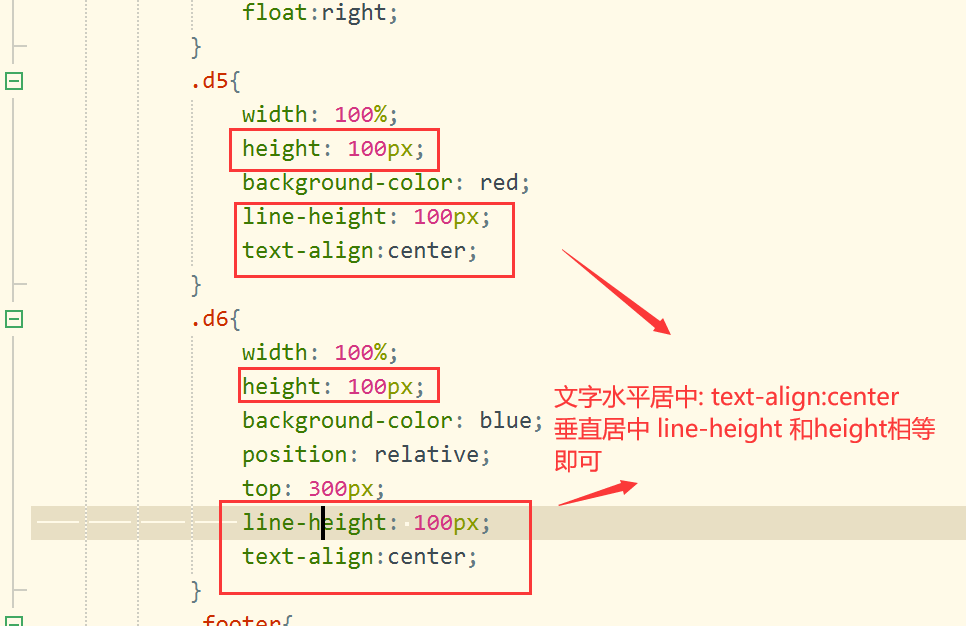
line-height:设置文本的行高
line-height和height 高度一致即可垂直居中
text-shadow:设置阴影及模糊效果,四个取值依次是: 水平偏移、垂直偏移、模糊值、阴影颜色
1
2
3
4
5
6
7
8
9
10
11
12
13
14
15
<style>
    #p1 {
        color: blue;
        text-decoration: underline;
        text-align: center;
        text-shadow: 20px 2px 2px red;
    }
</style>

<p id="p1">这是一个段落</p>
2
3
4
5
6
7
8
9
10
# 4.3、背景属性
用于对背景进行设置,常见属性如下:
- background-color:设置背景色,十六进制、表示颜色的英文单词; 重点
- background-image:设置背景图片,url('图片路径'); 重点
- **background-repeat:**设置背景图的平铺方向,repeat-y、repeat-x、repeat、no-repeat; 重点
- background-attachment:fixed; 重点
- background-size:规定背景图像的尺寸;
- background-position:改变图像在背景中的位置,top、bottom、left、right、center。
<style>
    body {
        background-color: red;
        background-image: url("./img/pic1.jpg");
        background-repeat: no-repeat;
        background-size: 100px 100px;
        background-attachment:fixed;   // scroll
        background-position: bottom center;
    }
</style>
2
3
4
5
6
7
8
9
10
# 4.4、列表属性
用于对列表进行设置,常见属性如下:
- list-style-type:改变列表的标识类型,none、disc(默认值)、circle、square、decimal(数字)、lower-latin(小写字母);
- list-style-image:用图像表示标识,url("图片地址"); 重点
- list-style-position:标识出现在列表项内容之外还是内部, inside、outside
<style>
    #ul1 {
        list-style-type: lower-latin;
    }

    #ul2 {
        list-style-image: url("img/eg_arrow.gif");
    }

    #ul3 {
        list-style-position: inside;
    }

    #ul4 {
        list-style-position: outside;
    }
</style>

<ul id="ul1">
    <li>JavaSE</li>
    <li>JavaWeb</li>
    <li>SSM</li>
</ul>

<ul id="ul2">
    <li>JavaSE</li>
    <li>JavaWeb</li>
    <li>SSM</li>
</ul>

<ul id="ul3">
    <li>JavaSE</li>
    <li>JavaWeb</li>
    <li>SSM</li>
</ul>
<ul id="ul4">
    <li>JavaSE</li>
    <li>JavaWeb</li>
    <li>SSM</li>
</ul>
2
3
4
5
6
7
8
9
10
11
12
13
14
15
16
17
18
19
20
21
22
23
24
25
26
27
28
29
30
31
32
33
34
35
36
37
38
39
40
# 五、DIV+CSS布局 重点
# 5.1、HTML中元素的分类
HTML中根据元素显示状态分为块级(block)元素和内联(inline)元素。
- 块级(block)元素:块状元素独占一行,默认宽度为容器的100%
- p
- h1~h6
- table
- div(没有任何含义,可以将其当成一个盒子,用来包裹其他元素) 重点
- 内联(inline)元素:内联元素共处一行
- a 超链接
- img 图片
- input
- select 下拉列表
- span(没有任何含义,可以将其当成一个盒子,用来包裹其他元素) 重点
CSS中存在display属性,可以改变元素显示状态,display属性如下: 重点
- block:按块显示
- inline:同行显示
- none:隐藏
<style>
    #p1 {
        border: 1px solid blue;
        /* 将段落设置为内联元素 */
        display: inline;
    }

    #p2 {
        border: 1px solid red;
        /* 将段落设置为内联元素 */
        display: inline;
    }

    #a1 {
        border: 1px solid yellowgreen;
        /* 将超链接设置为块级元素 */
        display: block;
    }

    #a2 {
        border: 1px solid brown;
        /* 将超链接设置为块级元素 */
        display: block;
    }

    #p3 {
        /* 隐藏p3 */
        display: none;
    }
</style>

<body>
    <p id="p1">Java是最好的语言</p>
    <p id="p2">Java No.1</p>
    <a id="a1" href="https://www.baidu.com">百度</a>
    <a id="a2" href="https://www.sina.com.cn">新浪</a>
    <p id="p3">隐藏</p>
</body>
2
3
4
5
6
7
8
9
10
11
12
13
14
15
16
17
18
19
20
21
22
23
24
25
26
27
28
29
30
31
32
33
34
35
36
37
38
# 5.2、盒模型
# 5.2.1、盒模型简介
盒子模型
所有 HTML 元素都可以视为方框。在 CSS 中,在谈论设计和布局时,会使用术语“盒模型”或“框模型”。
CSS 框模型实质上是一个包围每个 HTML 元素的框。它包括:外边距、边框、内边距以及实际的内容。下图展示了框模型: padding: 1px 2px 3px 4px
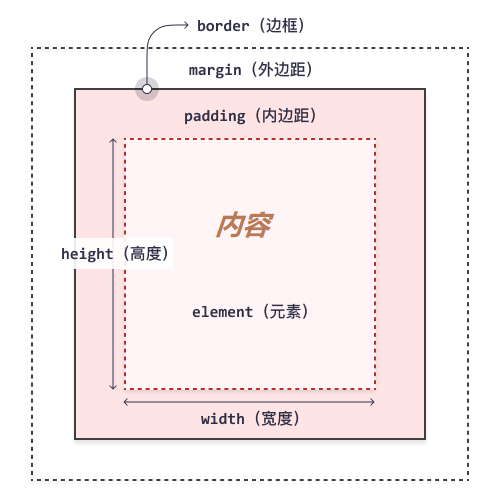
对不同部分的说明:
- 内容 - 框的内容,其中显示文本和图像;
- 内边距(padding) - 清除内容周围的区域。内边距是透明的;
- 边框(border) - 围绕内边距和内容的边框;
- 外边距(margin) - 清除边界外的区域。外边距是透明的;
- 宽度(width) - 内容区域的宽度;
- 高度(height) - 内容区域的高度
元素框的最内部分是实际的内容,直接包围内容的是内边距。
内边距呈现了元素的背景。内边距的边缘是边框。背景应用于由内容和内边距、边框组成的区域。
边框以外是外边距,外边距默认是透明的,因此不会遮挡其后的任何元素。
增加内边距、边框和外边距不会影响内容区域的尺寸,但是会增加元素框的总尺寸。
使用 CSS 设置元素的 width 和 height 属性时,只需设置内容区域的宽度和高度。要计算元素的完整大小,还必须把内边距、边框和外边距加起来。
# 5.2.2、与盒模型相关的CSS属性
# 5.2.2.1、宽度和高度
width:设置内容的宽度
height:设置内容的高度
# 5.2.2.2、边框
border:设置元素的边框
语法:
border: 宽度 样式 颜色border: 1px solid red 重点边框样式:
- none 无边框
- dotted 点状边框 .......
- dashed 虚线边框 -------
- solid 实线边框
border-radius:创建圆角
语法:
border-radius: 圆角半径
# 5.2.2.3、内边距 重点
padding:内容与边框之间的距离,其规则如下:
padding:
- 如果提供全部四个参数值,将按上、右、下、左的顺序作用于四边;
- 如果只提供一个,将用于全部的四边;
- 如果提供两个,第一个用于上、下,第二个用于左、右;
- 如果提供三个,第一个用于上,第二个用于左、右,第三个用于下。
除此之外,还有另外四个属性设置内边距:
- padding-top:设置元素的上内边距;重点
- padding-right:设置元素的右内边距;
- padding-bottom:设置元素的下内边距;
- padding-left:设置元素的左内边距。重点
# 5.2.2.4、外边距 重点
margin:边框与其他元素之间的距离,围绕在元素周围的空白区域,其规则如下:
- 如果提供全部四个参数值,将按上、右、下、左的顺序作用于四边;
- 如果只提供一个,将用于全部的四边;
- 如果提供两个,第一个用于上、下,第二个用于左、右;
- 如果提供三个,第一个用于上,第二个用于左、右,第三个用于下。
除此之外,还有另外四个属性设置外边距:
- margin-top:设置元素的上外边距;重点
- margin-right:设置元素的右外边距;
- margin-bottom:设置元素的下外边距;
- margin-left:设置元素的左外边距。重点
# 5.2.2.5、案例
<style>
    * {
        margin: 0px;
        padding: 0px;
    }

    #div1 {
        border: 1px solid blue;
        height: 50px;
        width: 200px;
        background-color: red;
        margin: 20px 20px;
        padding: 20px 20px;
        border-radius: 5px;
    }
</style>

<body>
    <div id="div1">hello world</div>
</body>
2
3
4
5
6
7
8
9
10
11
12
13
14
15
16
17
18
19
20
# 5.3、浮动属性float 重点
普通流定位:页面元素按照HTML元素默认的盒子模型,自上而下(block元素)或从左到右(inline元素)的排列次序。
浮动:浮动的框可以向左或向右移动,**直到它的外边缘碰到包含框或另一个浮动框的边框为止。**由于浮动框不在文档的普通流中,所以文档的普通流中的块框表现得就像浮动框不存在一样。
如下图所示,当把框 1 向右浮动时,它脱离文档流并且向右移动,直到它的右边缘碰到包含框的右边缘

如下图所示,当框 1 向左浮动时,它脱离文档流并且向左移动,直到它的左边缘碰到包含框的左边缘。因为它不再处于文档流中,所以它不占据空间,实际上覆盖住了框 2,使框 2 从视图中消失。
如果把所有三个框都向左移动,那么框 1 向左浮动直到碰到包含框,另外两个框向左浮动直到碰到前一个浮动框。

如下图所示,如果包含框太窄,无法容纳水平排列的三个浮动元素,那么其它浮动块向下移动,直到有足够的空间。如果浮动元素的高度不同,那么当它们向下移动时可能被其它浮动元素“卡住”。

<style>
    .dd{width:100px; height:100px;}
    .d1{ background-color: #f00;height:120px; float: left;}
    .d2{ background-color: #0f0; float: left;}
    .d3{ background-color: #00f; float: left;}
</style>
<body>
    <div style=" width:299px;">
        <div class="dd d1"></div>
        <div class="dd d2"></div>
        <div class="dd d3"></div>
    </div>
</body>
2
3
4
5
6
7
8
9
10
11
12
13
# 5.4、定位属性 重点 position (relative,absolute,fixed)
1不论是相对、绝对、固定,通过调整left top 以及 right bottom属性的取值,调整标签的位置
2固定和绝对定位,固定定位是不会随着滚动条滚动,绝对定位会滚动
相对定位(relative):元素框偏移某个距离,元素仍保持其未定位前的形状,它原本所占的空间仍保留。、
left 和 top **重点 **
<style type="text/css">
    h2.pos_left {
        position: relative;        //相对
        left: -20px

    }
    h2.pos_right {
        position: relative;
        left: 20px
    }
</style>

<body>
    <h2>这是位于正常位置的标题</h2>
	<h2 class="pos_left">这个标题相对于其正常位置向左移动</h2>
	<h2 class="pos_right">这个标题相对于其正常位置向右移动</h2>
	<p>相对定位会按照元素的原始位置对该元素进行移动。</p>
	<p>样式 "left:-20px" 从元素的原始左侧位置减去 20 像素。</p>
	<p>样式 "left:20px" 向元素的原始左侧位置增加 20 像素。</p>
</body>
2
3
4
5
6
7
8
9
10
11
12
13
14
15
16
17
18
19
20
绝对定位(absolute):元素框从文档流完全删除,并相对于其包含块进行定位。包含块可能是文档中的另一个元素或者是初始包含块。元素原先在正常文档流中所占的空间会关闭,就好像元素原来不存在一样。元素定位后生成一个块级框。
<style type="text/css">
    h2.pos_abs {
        position: absolute;
        left: 100px;
        top: 150px
    }
</style>

<body>
    <h2 class="pos_abs">这是带有绝对定位的标题</h2>
    <p>通过绝对定位,元素可以放置到页面上的任何位置。下面的标题距离页面左侧 100px,距离页面顶部 150px。</p>
</body>
2
3
4
5
6
7
8
9
10
11
12
固定定位(fixed):元素框的表现类似于将 position 设置为 absolute,不过其包含块是视窗本身。
 <style>
    #left {
        width: 200px;
        height: 200px;
        background-color: red;
        position: fixed;
        left: 0px;
        bottom: 0px;
     }
     #right {
         width: 200px;
         height: 200px;
         background-color: green;
         position: fixed;
         right: 0px;
         bottom: 0px;
     }
     #middle{
         width: 200px;
         height: 200px;
         background-color: blue;
         position: fixed;
         left: 50%;
         bottom: 50%;
     }
</style>

<body>
	<div id="left">左下</div>
    <div id="right">右下</div>
    <div id="middle">中间</div>
</body>
2
3
4
5
6
7
8
9
10
11
12
13
14
15
16
17
18
19
20
21
22
23
24
25
26
27
28
29
30
31
32
# 5.5、注册案例
<!DOCTYPE html>
<html lang="en">
<head>
    <meta charset="UTF-8">
    <title>注册</title>
    <style>
        * {
            margin: 0px;
            padding: 0px;
            box-sizing: border-box;
        }

        body {
            background-image: url("./img/bg.jpeg");
            background-repeat: no-repeat;
            background-attachment:fixed;
            background-position: top center;
            padding-top: 25px;
        }

        .rg_layout {
            width: 900px;
            height: 500px;
            border: 6px solid darkgray;
            margin: auto;
            background-color: honeydew;
        }

        .rg_left {
            margin: 20px;
            /*border: 1px solid black;*/
            float: left;
        }

        .rg_left p:first-child {
            font-size: 20px;
            color: yellowgreen;
        }

        .rg_left p:last-child {
            font-size: 20px;
            color: lightslategray;
        }

        .rg_center {
            /*border: 1px solid black;*/
            float: left;
        }

        .rg_right {
            margin: 20px;
            /*border: 1px solid black;*/
            float: right;
        }

        .rg_right p a {
            color: lightslategray;
        }

        .td_left {
            width: 100px;
            text-align: right;
            height: 45px;
        }

        .td_right {
            padding-left: 50px;
        }

        #username, #password, #email, #name, #birthday, #tel, #code {
            width: 251px;
            height: 32px;
            border: 1px solid darkgray;
            border-radius: 5px;
            padding-left: 10px;
        }

        #code {
            width: 150px;
        }

        #img_code {
            height: 32px;
            vertical-align: middle;
        }

        #reg_btn {
            width: 150px;
            height: 40px;
            background-color: #0000FF;
        }
    </style>
</head>
<body>
    <div class="rg_layout">
        <div class="rg_left">
            <p>新用户注册</p>
            <p>USER REGISTER</p>
        </div>
        <div class="rg_center">
            <div class="rg_form">
                <form action="#" method="post">
                    <table>
                        <tr>
                            <td class="td_left"><label for="username">用户名</label></td>
                            <td class="td_right"><input type="text" name="username" id="username" placeholder="请输入用户名"></td>
                        </tr>
                        <tr>
                            <td class="td_left"><label for="password">密码</label></td>
                            <td class="td_right"><input type="password" name="password" id="password"></td>
                        </tr>
                        <tr>
                            <td class="td_left"><label for="email">电子邮箱</label></td>
                            <td class="td_right"><input type="email" name="email" id="email"></td>
                        </tr>
                        <tr>
                            <td class="td_left"><label for="name">姓名</label></td>
                            <td class="td_right"><input type="text" name="name" id="name"></td>
                        </tr>
                        <tr>
                            <td class="td_left"><label for="tel">手机号</label></td>
                            <td class="td_right"><input type="text" name="tel" id="tel"></td>
                        </tr>
                        <tr>
                            <td class="td_left"><label>性别</label></td>
                            <td class="td_right">
                                <input type="radio" name="gender">男
                                <input type="radio" name="gender">女
                            </td>
                        </tr>
                        <tr>
                            <td class="td_left"><label for="birthday">出生年月</label></td>
                            <td class="td_right"><input type="date" name="birthday" id="birthday"></td>
                        </tr>
                        <tr>
                            <td class="td_left"><label for="code">验证码</label></td>
                            <td class="td_right"><input type="text" name="code" id="code"><img id="img_code" src="./img/验证码.jpg"></td>
                        </tr>
                        <tr>
                            <td align="center" colspan="2"><button id="reg_btn" type="submit">注册</button></td>
                        </tr>
                    </table>
                </form>
            </div>
        </div>
        <div class="rg_right">
            <p>已有帐号?<a href="#">立即注册</a></p>
        </div>
    </div>
</body>
</html>
2
3
4
5
6
7
8
9
10
11
12
13
14
15
16
17
18
19
20
21
22
23
24
25
26
27
28
29
30
31
32
33
34
35
36
37
38
39
40
41
42
43
44
45
46
47
48
49
50
51
52
53
54
55
56
57
58
59
60
61
62
63
64
65
66
67
68
69
70
71
72
73
74
75
76
77
78
79
80
81
82
83
84
85
86
87
88
89
90
91
92
93
94
95
96
97
98
99
100
101
102
103
104
105
106
107
108
109
110
111
112
113
114
115
116
117
118
119
120
121
122
123
124
125
126
127
128
129
130
131
132
133
134
135
136
137
138
139
140
141
142
143
144
145
146
147
148
149
150
151
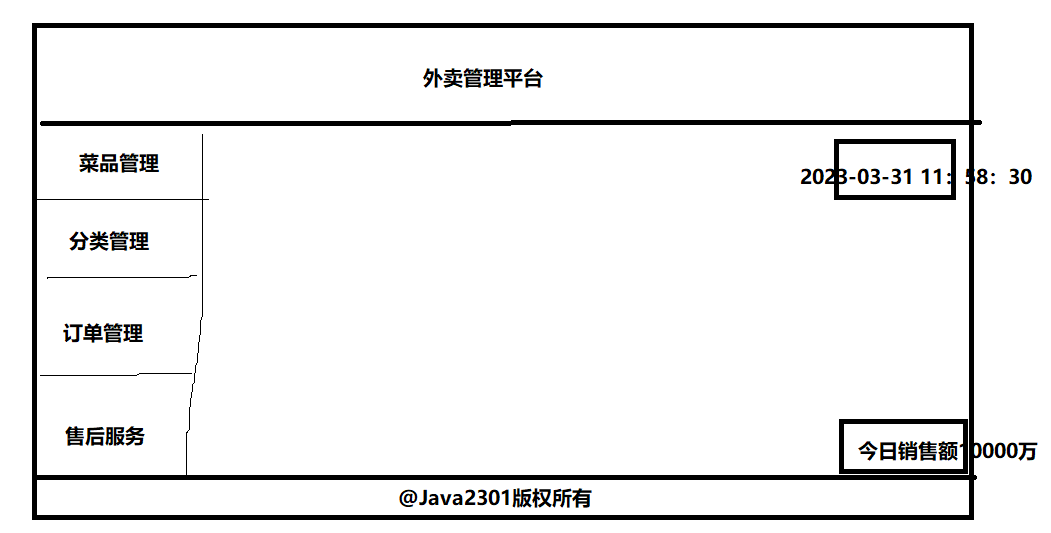
补充案例:
← HTML JavaScript →